 Onibaku
Sort Paragraphs & Sections
Put paragraphs, lists and whole sections of a Google Docs™ document in order. A to Z, Z to A, numbers in their proper order, shortest or longest first, reversed or shuffled, and duplicates removed. Free, with no account and no sign-up.
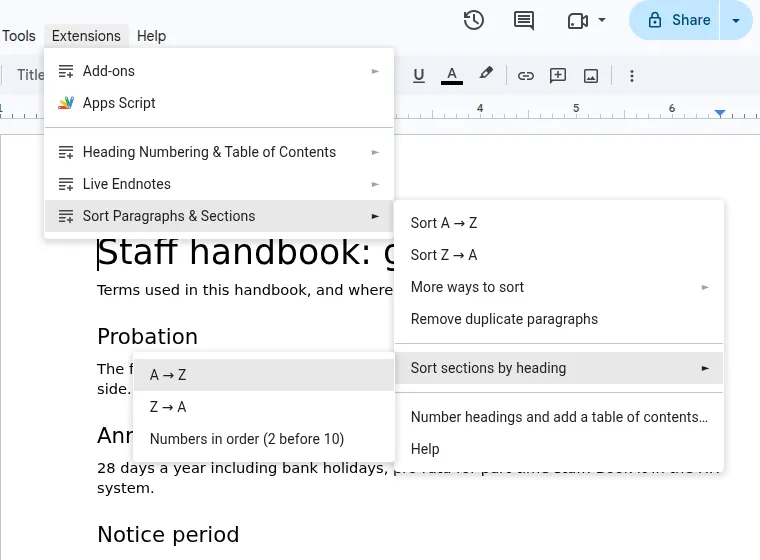
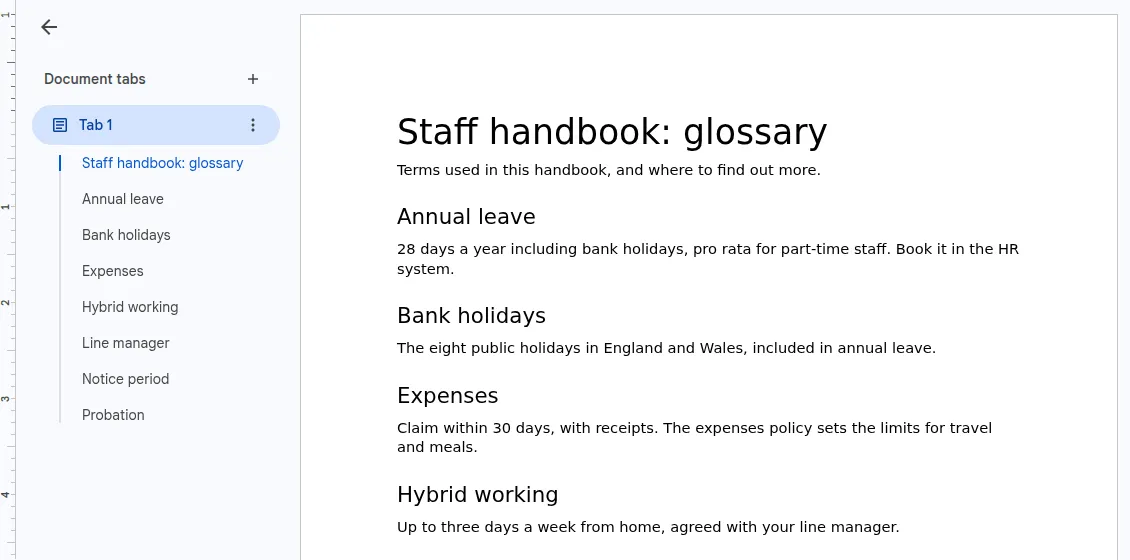
Sections move with their headings
Sort a glossary, a list of policies or a chapter's subsections by their headings. Each heading takes its text, tables, images and sub-headings along with it.
Formatting stays put
Paragraphs are moved whole, so bold, colours, links, inline images, footnotes and paragraph styles come with them. Empty lines stay where they were.
Lists, numbers and duplicates
Pick one to see a document before and after it.
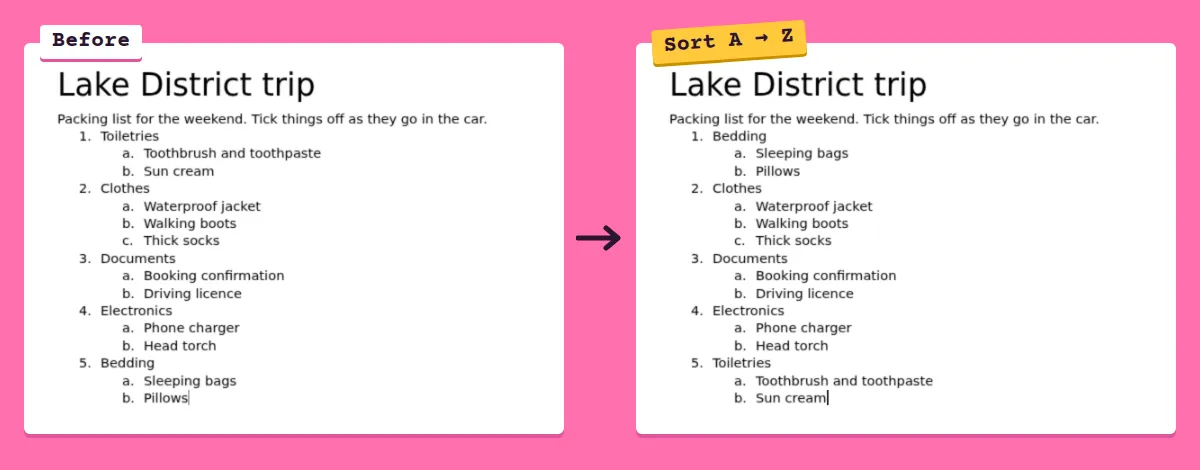
Lists keep their sub-points
Sorting a bulleted or numbered list moves each item together with the items indented beneath it, so nothing ends up under the wrong parent.
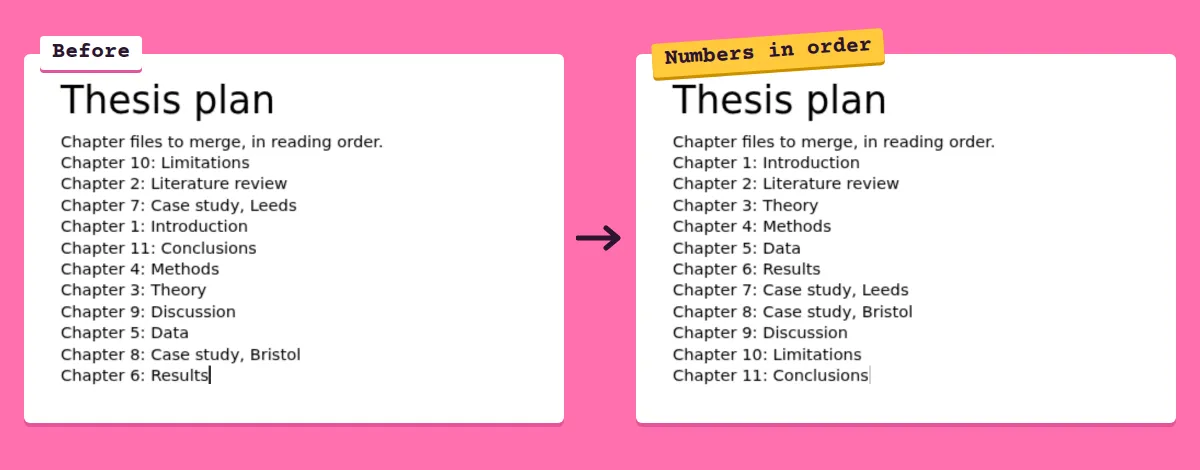
"Item 2" before "Item 10"
Number-aware sorting reads runs of digits as numbers, so chapters, clauses and part numbers come out in the order you'd expect.
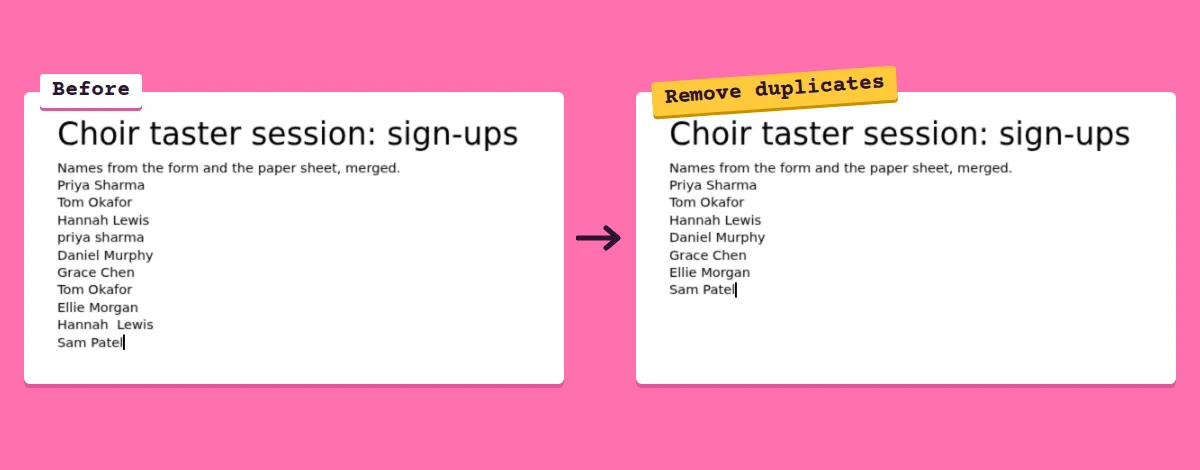
Remove duplicates, keep the first
Capitals, accents and extra spaces are ignored when comparing, so a repeat can't hide. Empty lines are left alone.
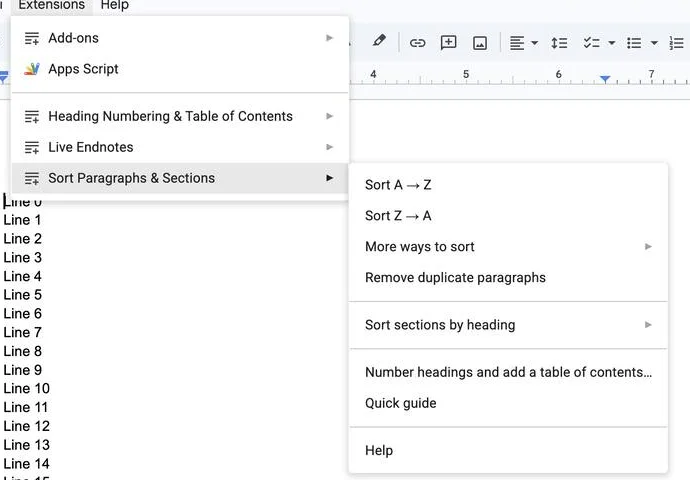
What's in the menu
- Sort A → Z and Sort Z → A
- Alphabetical order, ignoring capitals, accents and leading quotes or punctuation, so "Émile" sorts with E and '"Zebra"' with Z. Paragraphs that tie keep their current order.
- More ways to sort → Numbers in order
- Like A → Z, but "Item 2" comes before "Item 10", and "Chapter 9" before "Chapter 10".
- More ways to sort → Shortest first / Longest first
- By the number of characters.
- More ways to sort → Reverse order
- Turn a list upside down, for example to put the newest entry first.
- More ways to sort → Shuffle
- A random order, for quiz questions, name draws or speaking orders.
- Remove duplicate paragraphs
- Keeps the first of each and removes later copies. Capitals, accents and extra spaces are ignored when comparing. Empty lines are left alone.
- Sort sections by heading
- See below.
How to use it
- Select the paragraphs you want to sort. To sort the whole document, select nothing: the add-on asks before it changes anything.
- Choose Extensions → Sort Paragraphs & Sections and pick a sort.
- Changed your mind? Press Ctrl+Z (⌘Z on a Mac) once to undo the whole sort.
Sorting sections by their headings
A section is a heading (Heading 1 to Heading 6, set in Format → Paragraph styles) and everything below it up to the next heading at the same level or above. Sorting sections moves each one as a block, so its text, tables, images and sub-headings stay together.
- With headings selected, it sorts the sections your selection touches, at the highest heading level in the selection. Select from the first Heading 2 to the last one in a chapter to sort just that chapter's Heading 2 sections.
- With nothing selected, it sorts the highest heading level that has two or more headings, and tells you which level before it starts. Sections under different parent headings are sorted separately, so a Heading 2 never moves into another chapter.
- Text above the first sorted heading, such as a title and introduction, stays where it is.
- Heading numbers like "3. Scope" or "2.1 Terms" are ignored when sorting A → Z, so sections sort by their titles. Choose Numbers in order to sort by the numbers instead.
Good to know
Tables
A selection that includes a table isn't sorted, so the table can't get scrambled. Sort the paragraphs above or below it, or the paragraphs inside one table cell. To sort a table's rows, right-click a cell and use Docs' own Sort table. Tables inside a section move with their section.
Tables of contents
Google Docs doesn't let add-ons move one, so a section that contains a table of contents can't be sorted. Refresh your table of contents after sorting sections.
Links to headings
Moved headings are new copies, so links that jump to a moved heading need relinking. Bookmarks inside moved paragraphs are not carried over.
Size
Up to 3,000 paragraphs at a time. Large sorts take a few seconds per hundred paragraphs.
Tabs
It works on the tab you're in.
Number your headings, too
After sorting sections, their numbers will be out of order. Heading Numbering & Table of Contents, our other Docs add-on, numbers headings 1, 1.1, 1.1.1 or in legal style and renumbers them in one click whenever sections move. It also adds a linked table of contents, cross-references that update, and figure and table captions.
Writing with notes? Live Endnotes adds endnotes that renumber themselves as you edit, and turns footnotes into endnotes.
Free, and private
Sort Paragraphs & Sections is free, with no paid tier and no limits. It can only see the document you use it in, runs entirely inside Google, and never sends your text anywhere: it has no permission to contact any server. See the privacy policy and terms.
Help
Something not sorting the way you expected? Email admin@onibaku.co.uk with a description of the document (no need to share it), and we'll take a look.
Google Docs™ is a trademark of Google LLC. This add-on is not made or endorsed by Google.