 Onibaku
Heading Numbering & Table of Contents
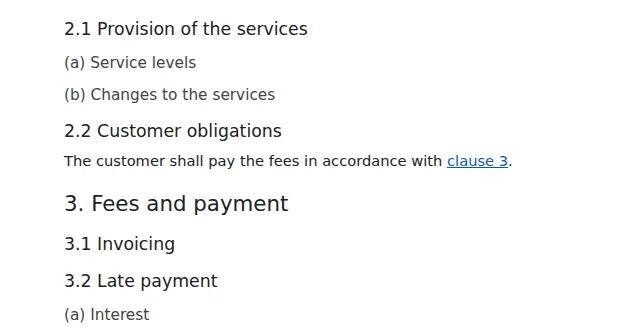
A Google Docs™ add-on that numbers headings 1, 1.1, 1.1.1 or in legal style with (a) and (i), and numbers captions for figures and tables. Move a section, renumber in one click, and references to clauses, sections and figures update with it.
Install from the Google Workspace MarketplaceWatch it in 30 seconds
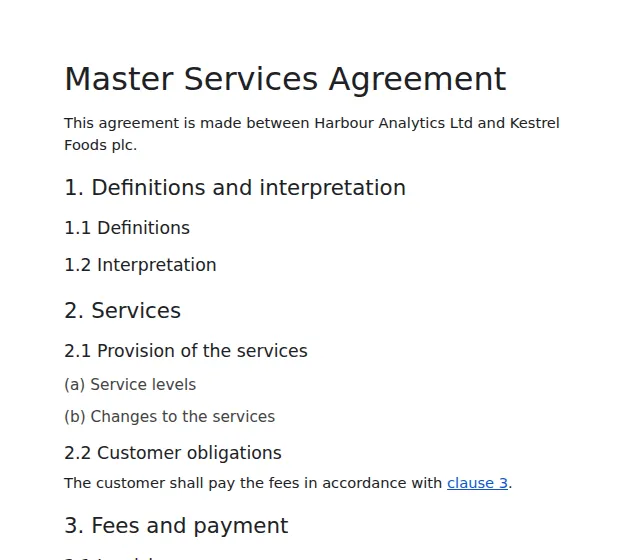
Numbers that keep up
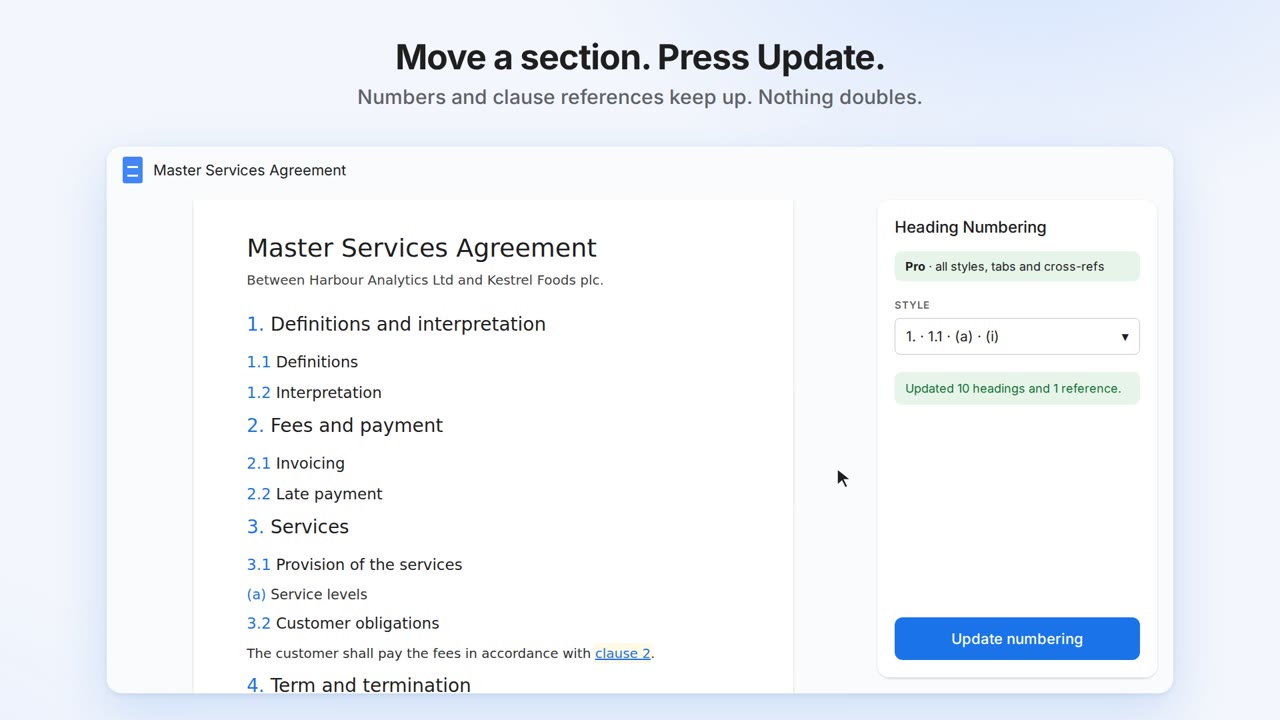
Renumber safely, as often as you like
Run it twice and nothing doubles. Move, add or delete headings and press Update: every number is recalculated. Headings like "2026 Budget" keep their own numbers.
Styles for real documents
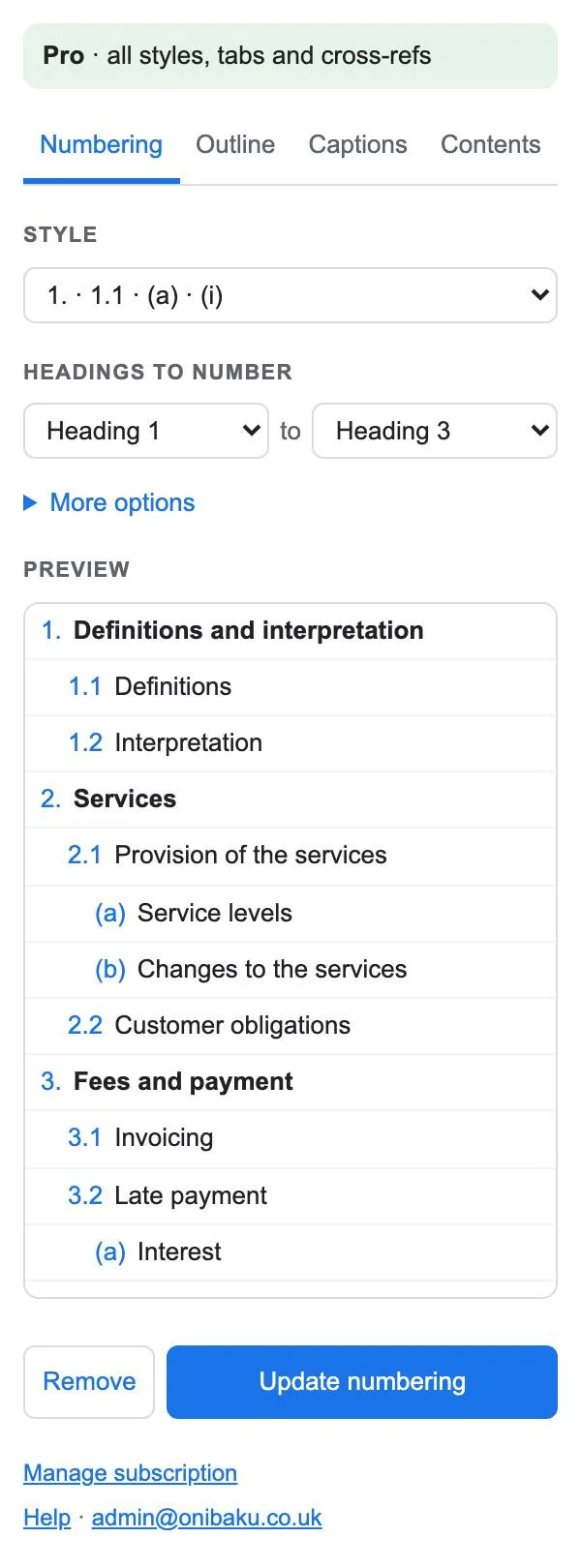
Decimal, legal (1. · 1.1 · (a) · (i)), outline (I. · A. · 1.), chapters, or your own pattern per level, like Article %1 or Schedule %1.
Cross-references that keep up
Link to "clause 3.2(a)" from anywhere in the document. When the numbering changes, every reference changes with it, and any that point at a deleted heading are flagged.
Figure and table captions
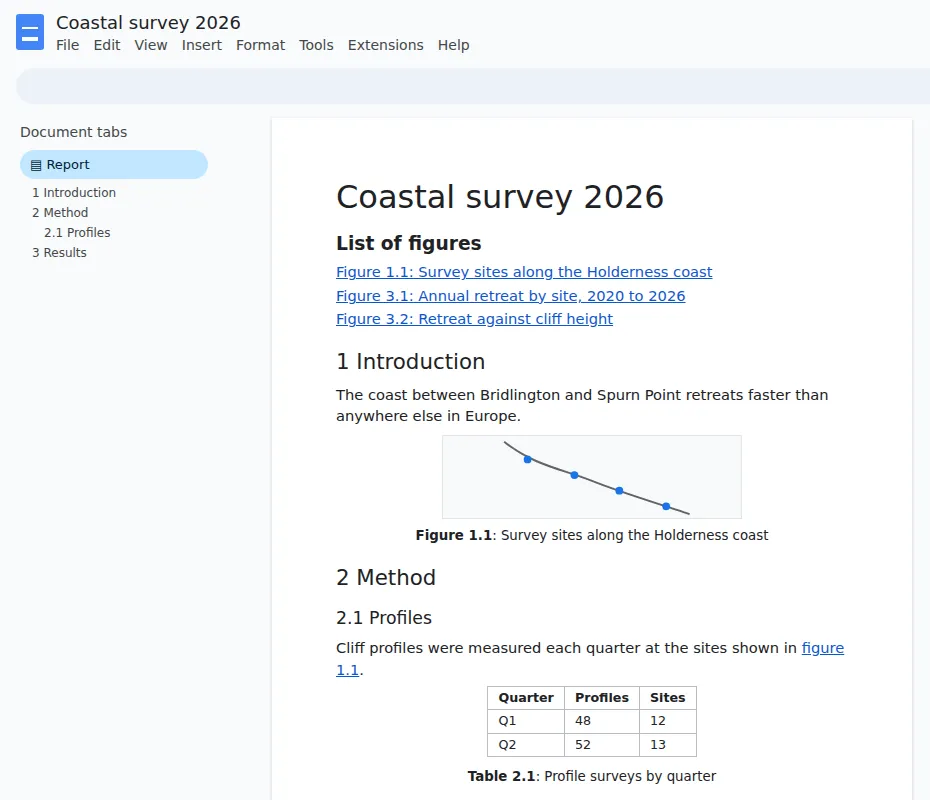
"Figure 1: …" under an image, "Table 1: …" by a table, numbered in document order or by chapter (Figure 2.3), with a linked list of figures and "see Figure 3" references.
See it in 30 seconds
Numbering, moving and renumbering headings in Google Docs. The video opens on YouTube.
Getting started
- Give your section titles heading styles: Format → Paragraph styles → Heading 1, 2, 3.
- Choose Extensions → Heading Numbering & Table of Contents → Open.
- Pick a style and which heading levels to number. The preview shows the result before anything changes.
- Press Update numbering. Press it again whenever you've moved or added headings.
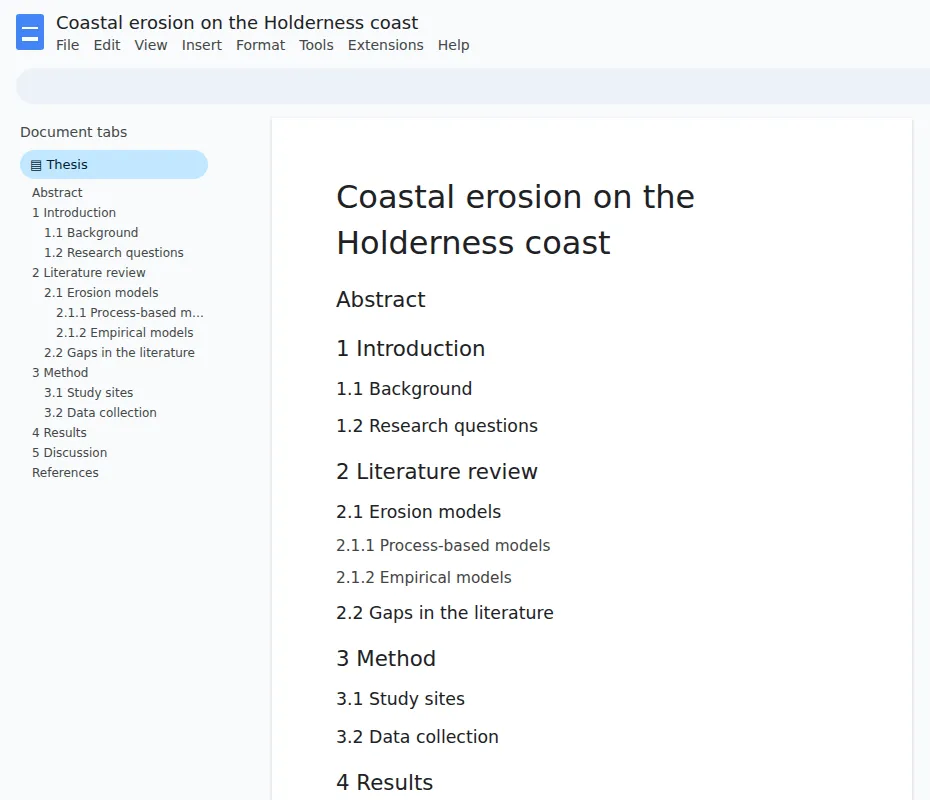
Numbers are ordinary text at the start of each heading, so they show in Google's outline, its table of contents, PDFs and Word exports. A non-breaking space follows each number: that's how the add-on recognises its own numbers and leaves the rest of your text alone. Remove takes them all off again.
Want the sections in alphabetical order first? Sort Paragraphs & Sections, our free Docs add-on, sorts whole sections by their headings. Then press Update numbering to put the numbers back in order.
Options and captions
Options
- Headings to number: for example Heading 2 to Heading 4, if your document uses Heading 1 as its title.
- Headings left unnumbered: Contents, Abstract, Acknowledgements, References and Bibliography by default, plus any you add. Headings under them stay unnumbered too.
- Typed numbers: if headings already start with numbers someone typed ("2.1 Scope"), the add-on says so and can replace them.
- After the number: a space, or a tab like Word uses.
- Tabs: number the tab you're in, or every tab at once (Pro), starting from 1 in each tab or carrying on.
- Empty headings, the Title style and headings already numbered by a Docs list are skipped. Problems such as a Heading 3 with no Heading 2 above it are listed in the sidebar.
Contents
On the Contents tab, choose how deep to go and whether to show numbers and links, then press Insert contents. A linked list of headings goes in below your cursor and refreshes every time you update the numbering. Google's own table of contents works alongside it: after renumbering, click Google's table and press its refresh button.
Captions
Open the Captions tab. Click an image or a table in the document, choose a label (Figure, Table, Chart, Equation, or one of your own such as Plate), type the caption if you like, and press Insert caption.
- Images: the caption goes on a new line under the image, lined up with it. For an image with text wrapping, click in the paragraph the image is attached to, and the caption goes under that paragraph.
- Tables: click in any cell. The caption goes above the table, as most style guides ask, or below it if you change the “Table captions go” option.
- Anywhere else: the caption goes on the line after your cursor, or into the empty line you're on.
Each label counts on its own: Figure 1, 2, 3 and Table 1, 2. After moving or adding figures, press Renumber captions (or Update numbering, which does captions too) and every caption is put back in document order. The sidebar lists every caption, with an arrow on any whose number is about to change.
Captions you've typed yourself count too, as long as the number has punctuation after it: "Figure 3: Map" or "Table 2. Costs". Type Figure #: for a new one and let renumbering fill in the number. A sentence that only starts with a label, like "Figure 3 shows the trend", is never touched.
Caption options set what follows the number (Figure 1: · Figure 1. · Figure 1 –), where table captions go, and your own labels. Number by chapter (Pro) gives Figure 2.3 or Figure 2-3, taking the chapter from the numbered heading at your first numbered level, so it follows your heading numbering.
Lists of figures and tables (Pro)
On the Captions tab, choose which label to list and a title, put your cursor where the list should go, and press Insert list. Each line links to its caption, and the list refreshes whenever captions are renumbered. A document can have a list for each label.
References to captions (Pro)
Put your cursor in the text, hover over a caption in the Captions tab and press Ref. Choose "Figure 3", "figure 3" or just "3". The reference links to the caption and changes when the caption's number does. A reference whose caption has been deleted is highlighted in yellow.
Cross-references (Pro)
Put your cursor where the reference should go, open the Outline tab, hover over a heading and press Ref. Choose the number ("3.2"), number and title ("3.2 Late payment") or title only, with an optional word in front such as clause or section. References are links, so readers can click through. If a heading they point at is deleted, they're highlighted in yellow and listed in the sidebar.
Plans
| Free | Pro | Team | |
|---|---|---|---|
| Decimal numbering, renumber and remove | Yes | Yes | Yes |
| Outline view and contents list | Yes | Yes | Yes |
| Legal, outline, chapter and custom styles | No | Yes | Yes |
| Every tab at once | No | Yes | Yes |
| Cross-references | No | Yes | Yes |
| Figure and table captions, renumbered in document order | Up to 20 per document | Unlimited | Unlimited |
| Captions numbered by chapter, lists of figures and tables, references to captions | No | Yes | Yes |
| Price | Free | $4 a month or $29 a year | $3 a person a month or $24 a year, from 3 people |
Upgrade from the sidebar. Payment is handled by Stripe, and Pro unlocks in the sidebar within a few seconds, on the Google account you upgraded from. The receipt page shows a licence key, which you can use to move Pro to a different Google account. Cancel or change your card any time from Manage subscription in the sidebar.
On a Team plan, colleagues with an email address at the same work domain as yours get a seat automatically the first time they open the add-on. Anyone else joins by entering the team's licence key under Have a licence key?. The buyer can see who has a seat, remove people and change the number of seats from the seats page linked on the receipt and in the sidebar.
Security and your data
Details are in our privacy policy.
- Only the current document. The add-on can only open the document you're using it in. It can't see your other files, Gmail or Drive.
- Your document stays in Google. Headings and captions are read and numbered by Google Apps Script on Google's servers. Your text is never sent to Onibaku.
- One thing leaves Google: to check your plan, the add-on sends your Google account's email address to our licence server.
Help
A heading wasn't numbered
Check it uses a heading style (not just big bold text), that its level is in the range you chose, and that it isn't in the "don't number" list or under a heading that is. Hover over it in the preview to see why it was skipped.
Some headings have two numbers
One number was typed by hand. Tick Replace typed numbers in the sidebar and update. If the heading is part of a Docs numbered list, remove the list numbering with Format → Bullets & numbering first.
Small blue flags appeared next to my headings
Those are Google Docs bookmarks, which the contents list and cross-references link to. Docs shows them while you edit; they don't appear when the document is printed, exported to PDF or viewed by readers. Deleting one breaks the links to that heading, which the sidebar will point out. A contents list with Link to each heading turned off doesn't add any.
A caption wasn't counted
The caption has to start its own paragraph with the label, then the number, then punctuation: "Figure 3: Map", not "Map (Figure 3)". Labels are case sensitive, so "figure 3:" isn't counted. Your own labels need adding under Caption options first. Captions in headers, footers and footnotes aren't counted.
Google's table of contents shows old numbers
Google's table doesn't refresh by itself. Click it and press the refresh button that appears. The add-on's own contents list refreshes whenever you update the numbering.
I paid but the add-on still says Free
Reopen the sidebar on the Google account you upgraded from. If you paid from a different account, choose Have a licence key? and paste the key from your receipt page. Still stuck? Email admin@onibaku.co.uk with the email on your Stripe receipt and we'll sort it the same day.
My school account can't open it
Schools on Google Workspace for Education can mark student accounts as under 18, and Google then blocks add-ons for those accounts until an administrator allows them. Use the request button Google shows you, or ask your IT team to allow Heading Numbering & Table of Contents for your group in the Admin console (App access control, or the Marketplace allowlist). What the add-on sends us is set out in our privacy policy.
It says a permission is missing
Google lets you untick permissions when installing. Press Allow access in the sidebar and tick everything, then press “check again”.
Number it once. Keep it right.
- How to number headings in Google Docs
- How to number clauses in Google Docs
- How to add figure captions in Google Docs
Found a bug, or want a feature? Email admin@onibaku.co.uk.
Google Docs™, Gmail™, Google Drive™ and Google Apps Script™ are trademarks of Google LLC. This add-on is not made or endorsed by Google.