 Onibaku
Search Confluence with CQL, export to Excel
CQL Search & Table Export is a Confluence Cloud app. Find exactly the content you need with Confluence Query Language, show live results on any page, and get results or page tables into a spreadsheet in one click.
Built on Forge. Runs on Atlassian’s infrastructure.
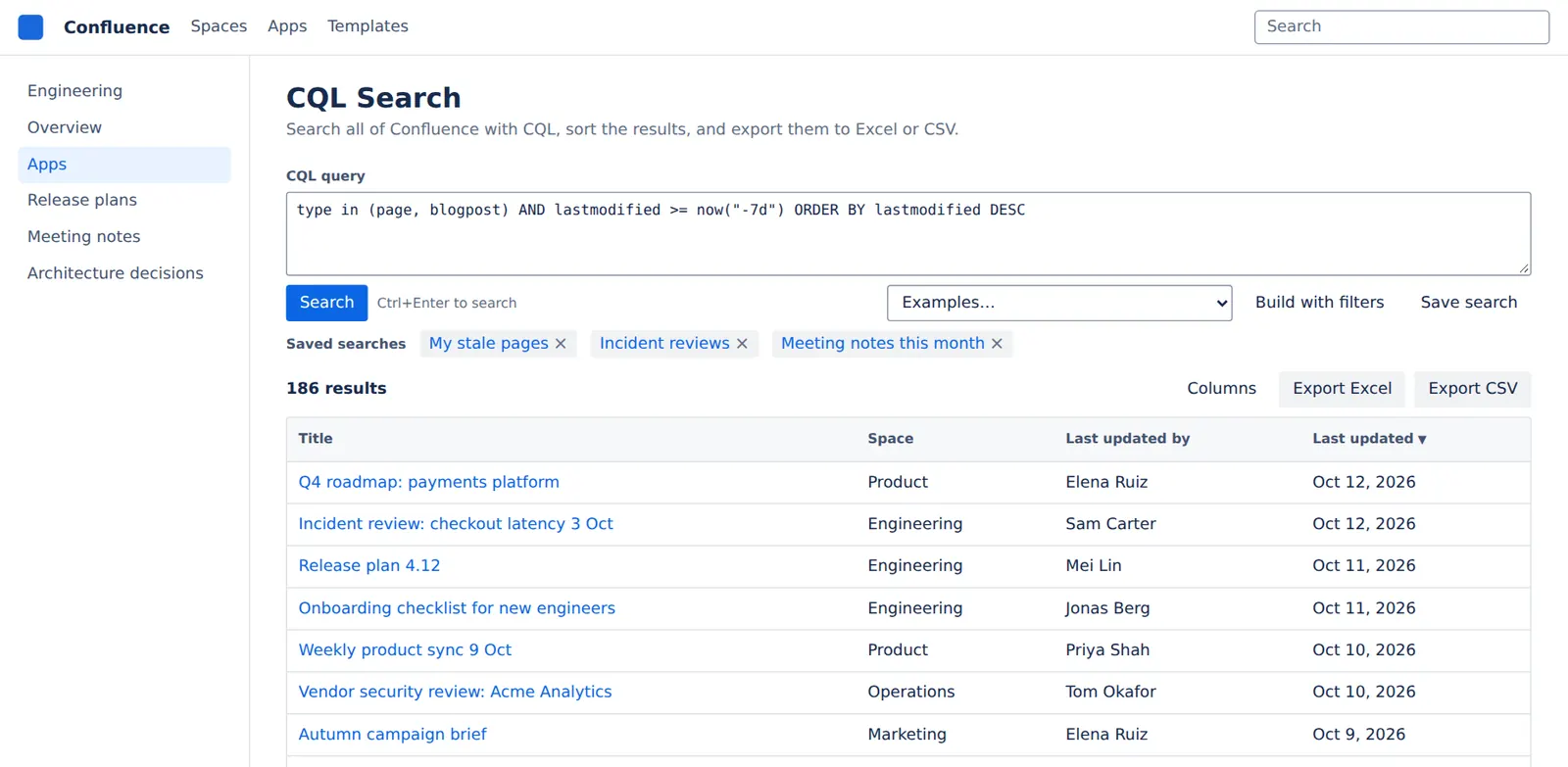
One app, three jobs
CQL Search page
Run any CQL query across your site, or build one from simple filters. Sort, pick columns and save searches you use often.
CQL results macro
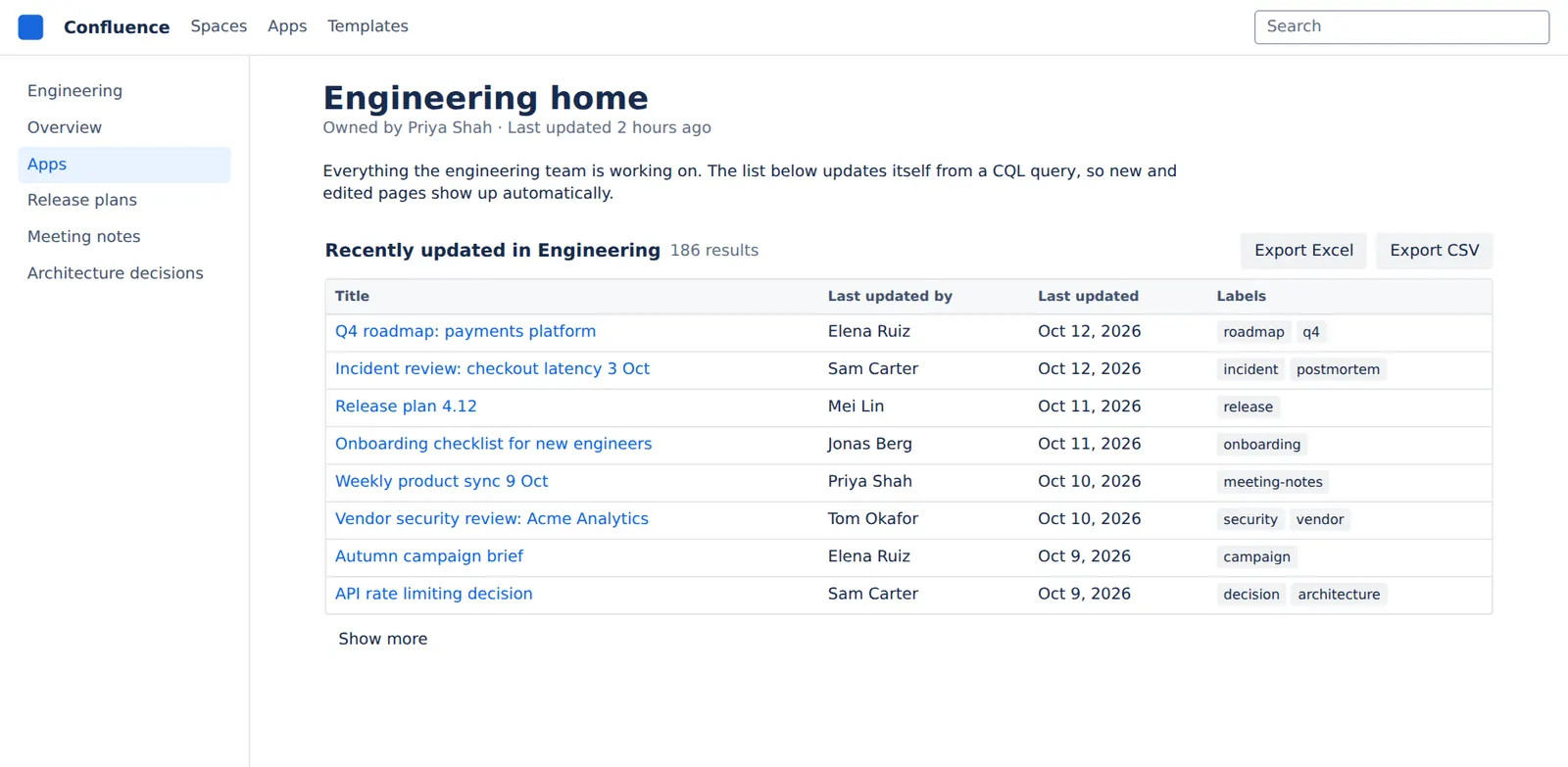
Embed a live list on any page: recent updates in this space, everything under a page, all pages with a label.
Export to Excel and CSV
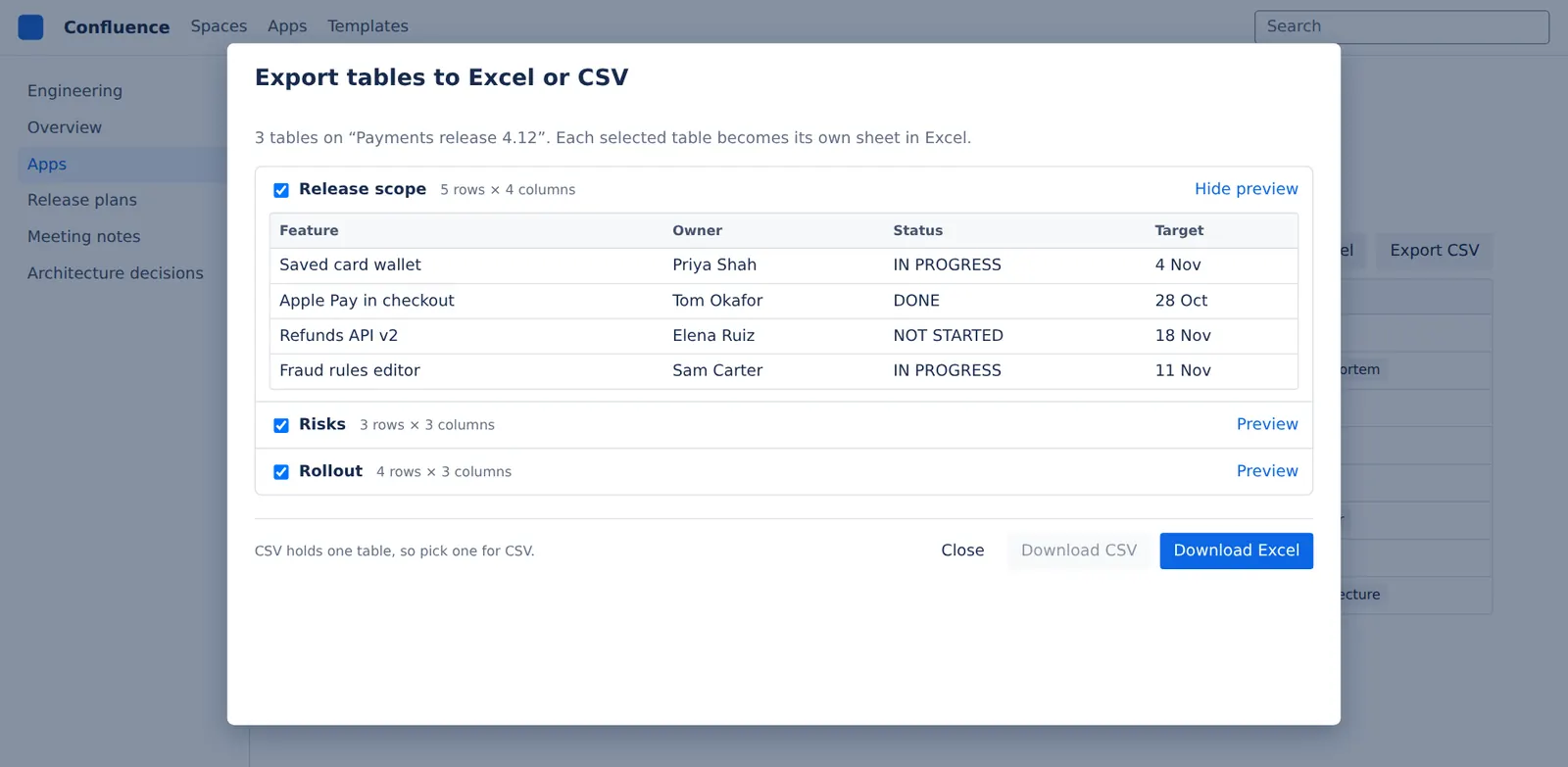
Export every search result, or the tables on a page, with merged cells expanded and one sheet per table.
CQL quick reference
Eight queries to start from. Paste one into the search page or a results macro and change the names.
| You want | Write |
|---|---|
| Pages in one space | space = ENG AND type = page |
| Either of two labels | label in ("q3", "okr") |
| Changed in the last 30 days | lastmodified >= now("-30d") |
| Untouched for a year | lastmodified < now("-52w") |
| Things you created | creator = currentUser() |
| Titles starting with a word | title ~ "retro*" |
| Exact phrase in the text | text ~ "\"release plan\"" |
| PDF attachments | type = attachment AND title ~ "*.pdf" |
Atlassian’s full reference: Advanced searching using CQL.
Getting started
Search
Open Apps → CQL Search in Confluence. Type a query and press Search (or Ctrl+Enter), or use Build with filters if you’d rather not write CQL. Click a column header to sort by it, and use Columns to choose what’s shown.
Save search keeps the query and your chosen columns so you can run it again in one click. Saved searches are private to you.
Embed results on a page
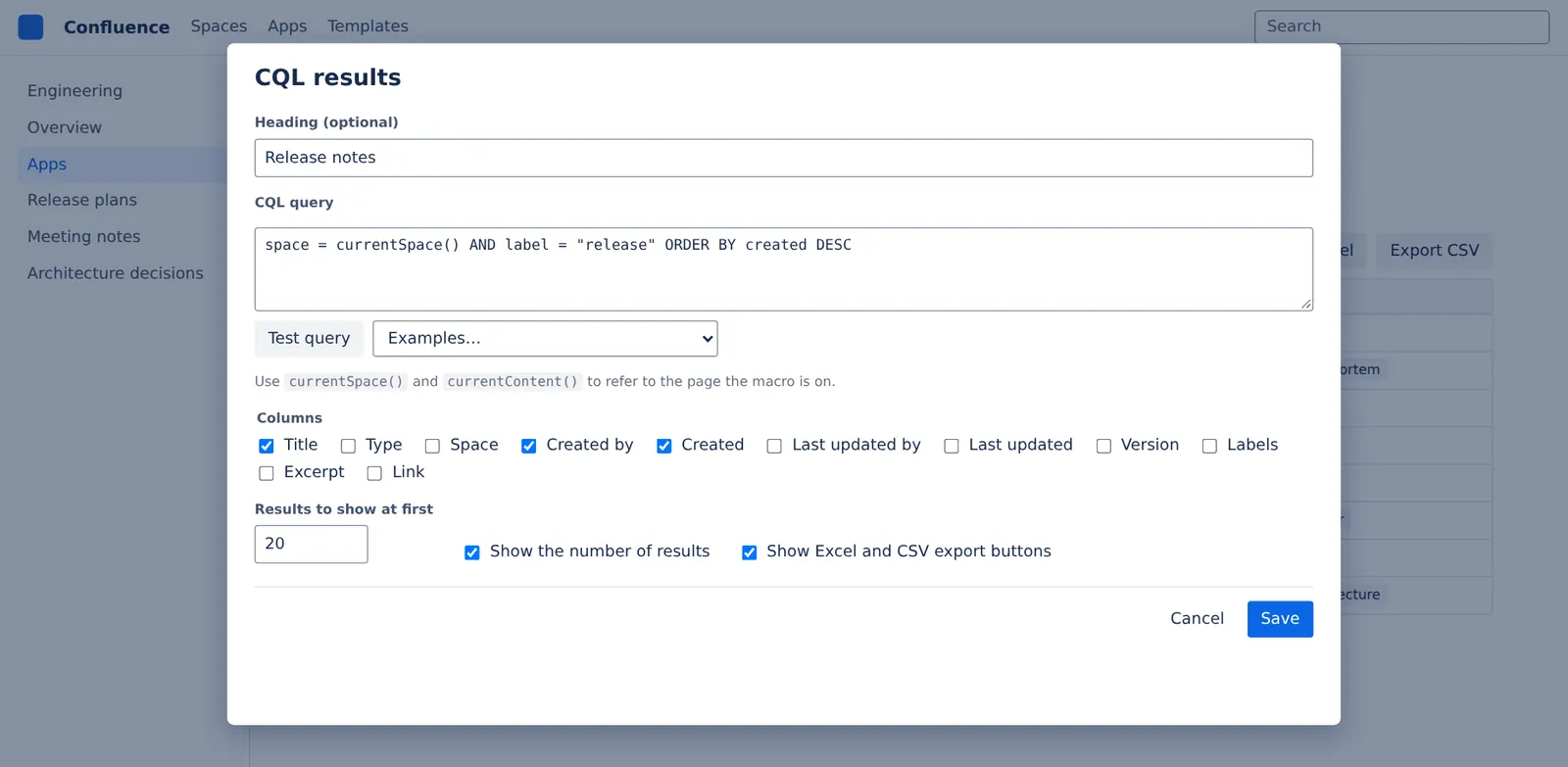
While editing a page, type /CQL results and pick the macro. Enter a query, press Test query to check it, choose columns, and save. The list updates every time someone views the page. Two functions make macros reusable:
| Query | Shows |
|---|---|
space = currentSpace() AND type = page ORDER BY lastmodified DESC | Recently updated pages in the space the macro is in |
ancestor = currentContent() ORDER BY title | Every page below the current one |
label = "meeting-notes" AND created >= now("-30d") | Meeting notes from the last 30 days |
Export
Export Excel and Export CSV on the search page (and optionally on the macro) download every matching result, up to 10,000, not just the rows on screen. Dates are exported as YYYY-MM-DD so spreadsheets can sort them, and a link to each item is always included. For content audits, add the Page ID, Parent page and Page path columns.
To export the tables on a page, open the page’s ••• menu and choose Export tables to Excel or CSV. Tick the tables you want and download them as one Excel workbook (a sheet per table) or a single CSV. Merged cells are filled in so every row lines up, and things like status lozenges come through as text.
Security and your data
- Runs on Atlassian. The app is built on Forge and runs entirely on Atlassian’s infrastructure. No content is sent to Onibaku or any other server.
- Respects permissions. Searches and exports run as the person using the app, so they only ever see content they already have access to.
- Stores almost nothing. The only data kept is each person’s saved searches (a name, the query and column choices), in Atlassian’s Forge storage. Exports are generated in your browser.
Details are in our privacy policy.
Help
Found a bug, or want a feature? Email admin@onibaku.co.uk.
See support for what to include.
Your query, one click from Excel
Confluence Cloud. Runs as the person using it, so permissions stay as they are.