 Onibaku
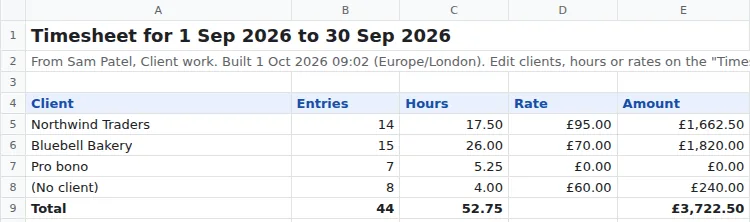
A month of meetings, billed by client
Calendar Timesheets & Billing is a Google Sheets add-on. Pick your calendars and a date range, tag events by client, and get a clean timesheet and a per-client billing summary in your sheet. Hours, rates and totals, ready to invoice.
Free for one calendar and this or last month. Pro is $5 a month or $39 a year.

Hours you can bill
Exact hours, nothing outside the range
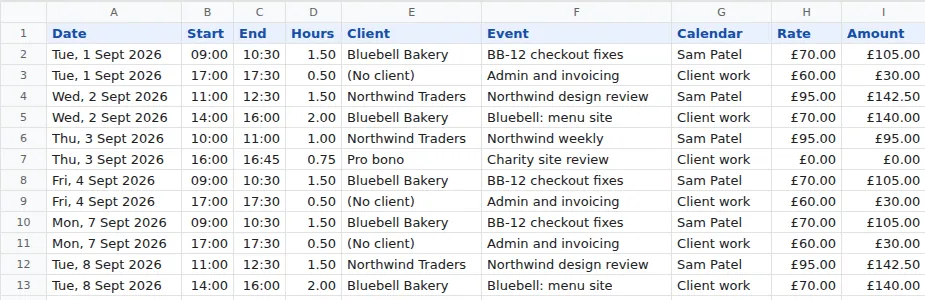
Events are clipped to the dates you pick and split at midnight, so a meeting that runs over the end of the month only counts the part inside it.
Clients and rates
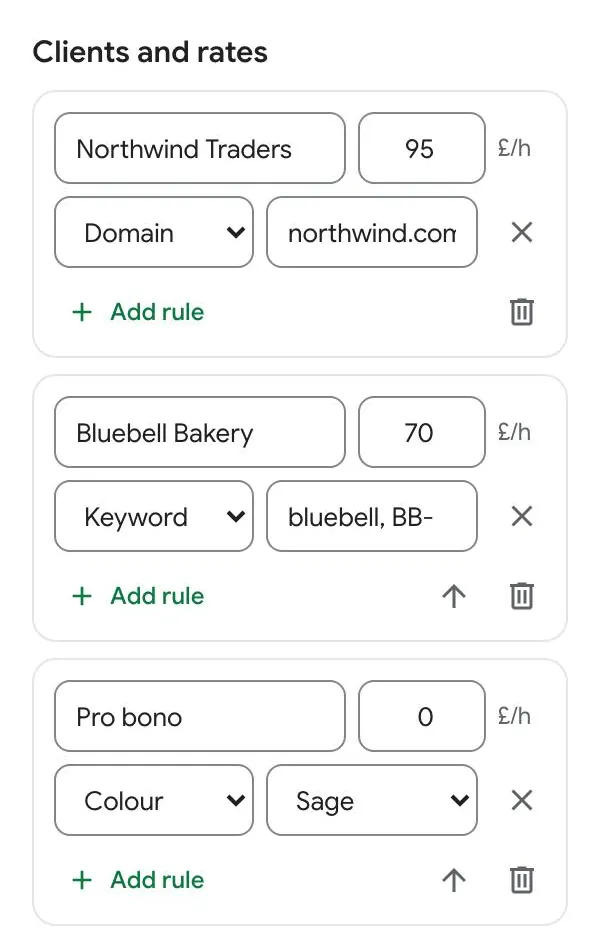
Tag events by keyword, attendee email domain, event colour or calendar. Each client gets its own hourly rate, with a default for the rest.
Totals that follow your edits
The summary is built with formulas, so changing a client, hours or rate on the timesheet updates the totals straight away.
Getting started
- Install the add-on from the Google Workspace Marketplace, then open any Google Sheet.
- Choose Extensions → Calendar Timesheets & Billing → Open timesheet builder.
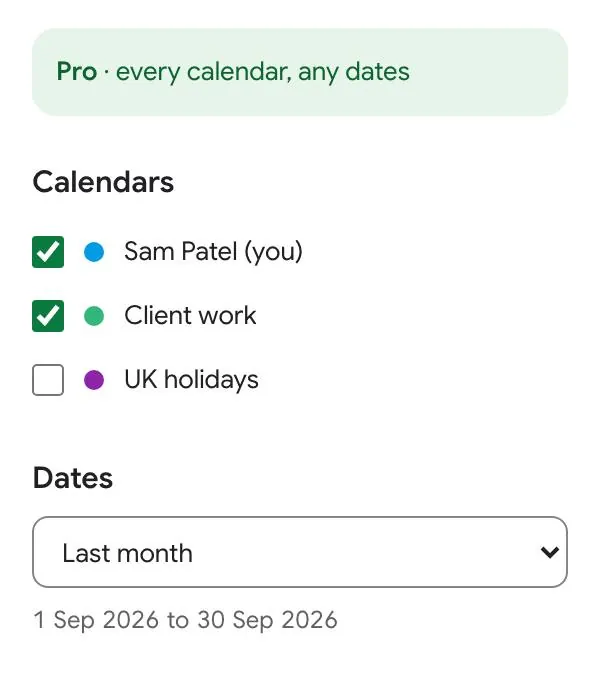
- Tick the calendars to include and pick a date range: last month, this month, last week, this week or custom dates.
- Add your clients. For each one, give an hourly rate and one or more rules saying which events belong to it.
- Press Build timesheet. Two tabs appear: Timesheet (one row per event per day) and Client summary.
Your settings are saved with the spreadsheet, so next month you can open it and choose Rebuild with saved settings from the menu.
Matching events to clients
Separate alternatives with commas. If an event matches more than one client, the one higher up the list wins (use Move up to reorder). Events that match no client are listed as “(No client)” at the default rate, or left out if you prefer.
| Rule | Matches when | Example |
|---|---|---|
| Keyword | The title, description or location contains the text | acme, ACM- |
| Title has | The title contains the text | Standup |
| Domain | Anyone else invited has an email at that domain (subdomains too) | acme.com |
| Attendee | A particular person is invited | jo@acme.com |
| Colour | The event has that colour in Google Calendar | Sage |
| Calendar | The event is on that calendar | Client work |
Options
- Declined events are skipped by default. So are cancelled events, out-of-office blocks and working-location entries.
- All-day events are skipped by default, or can count as a set number of hours per day.
- Events shown as “free” can be skipped.
- Rounding to 6, 15 or 30 minutes or an hour, either to the nearest step or always up.
- The same meeting on two calendars you’ve ticked is only counted once.
- Times use the spreadsheet’s time zone (File → Settings).
Plans
| Free | Pro | |
|---|---|---|
| Calendars per timesheet | One | As many as you like |
| Date range | This month or last month | Any range up to two years |
| Clients, rates, rounding, summary | Included | Included |
| Price | Free | $5 a month or $39 a year |
Upgrade from the sidebar.
Payment is handled by Stripe, and Pro unlocks in the sidebar within a few seconds, on the Google account you upgraded from. The receipt page shows a licence key, which you can use to move Pro to a different Google account. Cancel or change your card any time from Manage subscription in the sidebar.
Security and your data
- Read-only calendar access. The add-on can read your calendars but can’t create, change or delete events.
- Your events stay in Google. Events are read and written into your spreadsheet by Google Apps Script, on Google’s servers. They are never sent to Onibaku.
- Only the current spreadsheet. The add-on can only open the spreadsheet you’re using it in, not your other files.
- Nothing from your calendar or sheet leaves Google. To check your plan, the add-on sends your Google account’s email address to our licence server, along with anonymous counts of how often the add-on is used.
Details are in our privacy policy.
Guides and help
Some events are missing
Check the result message in the sidebar: it lists how many events were skipped and why (declined, all-day, shown as free, no client, or a duplicate). Calendars shared with you as “see only free/busy” can’t be read and aren’t listed.
I paid but the add-on still says Free
Reopen the sidebar on the Google account you upgraded from. If you paid from a different account, choose Have a licence key? and paste the key from your receipt page. Still stuck? Email admin@onibaku.co.uk with the email on your Stripe receipt and we’ll sort it the same day.
It says Calendar access is needed
Google lets you untick permissions when installing. Press Allow access in the sidebar and tick calendar access, then press check again.
Found a bug, or want a feature? Email admin@onibaku.co.uk.
Bill from the calendar you already keep
Read-only calendar access. Your events never leave Google.